HTML to PDF Converter — create PDFs from HTML in seconds
Convert HTML to professional PDF documents instantly. Automate PDF generation from invoices, reports, or webpages — no manual formatting needed.
How can I turn HTML into a polished PDF with no manual effort?
You can create professional PDF documents from any HTML content — without lifting a finger. CodeWords automatically renders your formatted HTML as a ready-to-share PDF using Playwright, so your team never has to worry about manual exporting or inconsistent results. Use it for invoices, reports, marketing collateral or website snapshots. Everything looks exactly as you intended, every time.
What types of HTML files can I convert to PDF?
Any webpage, app dashboard, or custom HTML file can be turned into a PDF. Whether you're saving receipts, archiving records, or producing documents for clients, this tool handles it all. If it can display in a browser, it converts perfectly — graphics, tables, and brand styles included. That means your branding and formatting are preserved, hands-free.
Does this save time compared to manual conversion?
Definitely. Manual conversion is tedious, especially for large volumes or recurring reports. With CodeWords, the process happens instantly in the background, freeing you from repetitive tasks. Need to automatically convert receipts from a form submission or weekly reports? Set it once, and it's done.
How do I set up HTML to PDF conversion?
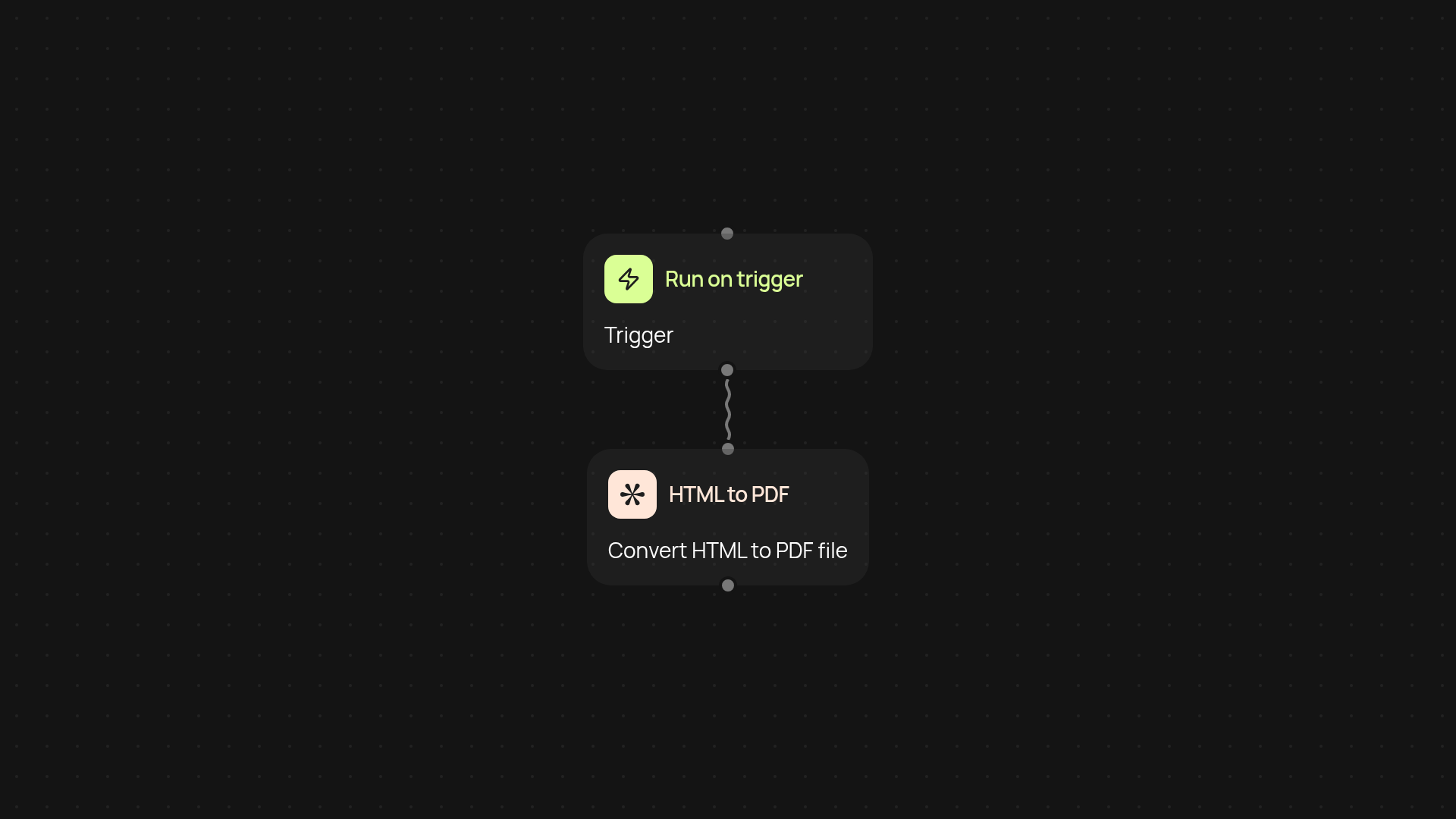
Getting started takes just a few steps. First, choose a trigger — like a manual run, a schedule, or another event. Provide your HTML content, and CodeWords will convert it. You'll need your HTML source, and that's it. PDFs can be saved wherever you need, sent by email, or attached to messages. No special setup is required — just connect and go.
More templates
Get started today
Your first agent is free to build.
Describe what you need. Cody handles the build, the connections, and the deployment.